Create Pivot Chart From Pivot Table
Here is our approach for creating pivot charts from pivot table in Zoho Sheet in a simple way.
Even a non-technical person can easily set it up in just a few steps.

Approach
We can create pivot chart from pivot table using the following steps.
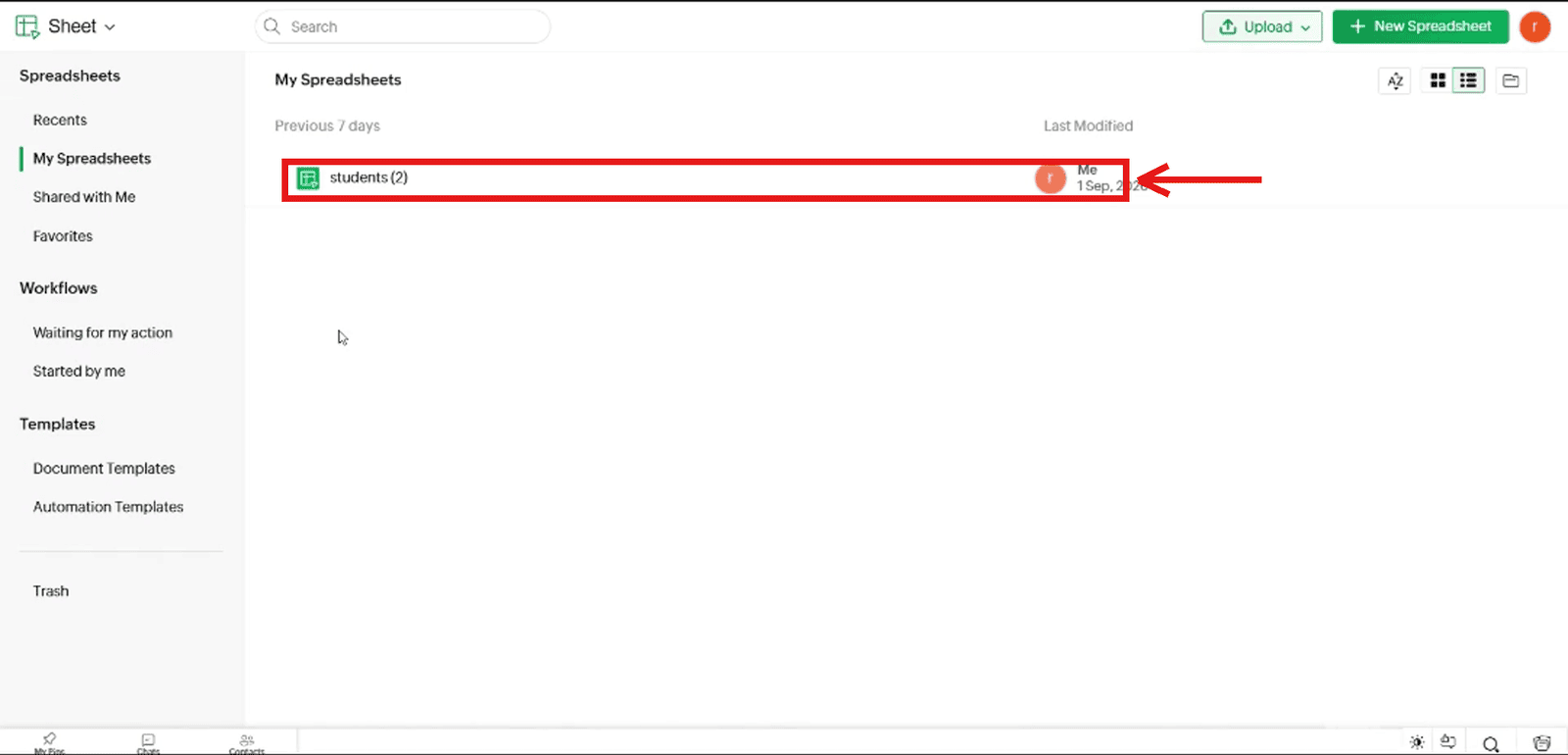
1. Open your spreadsheet
1.1 Open the spreadsheet with your data (1.1_Open_your_spreadsheet).
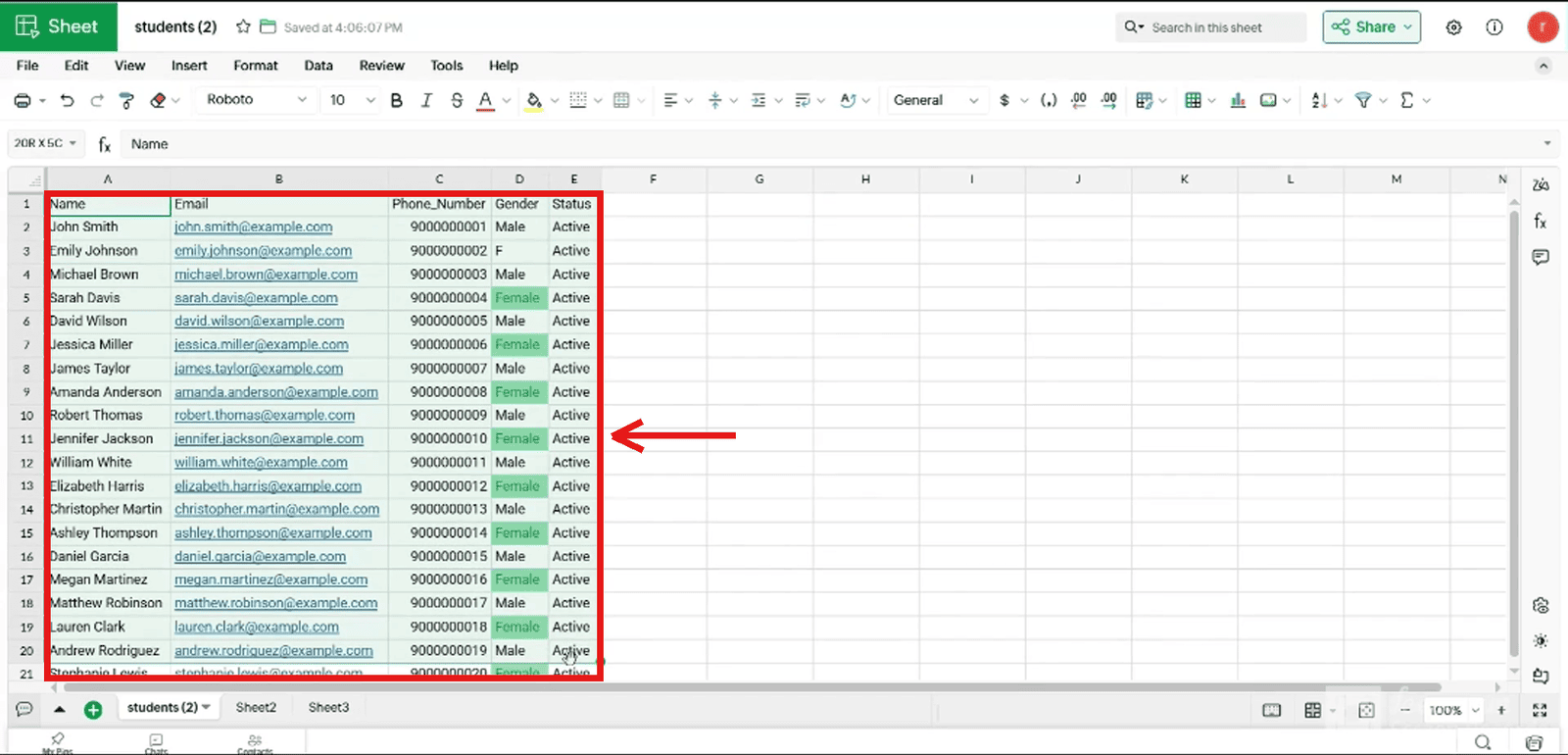
2. Select the data range
2.1 Click the first cell, A1 (2.1_Click_first_cell_A1).
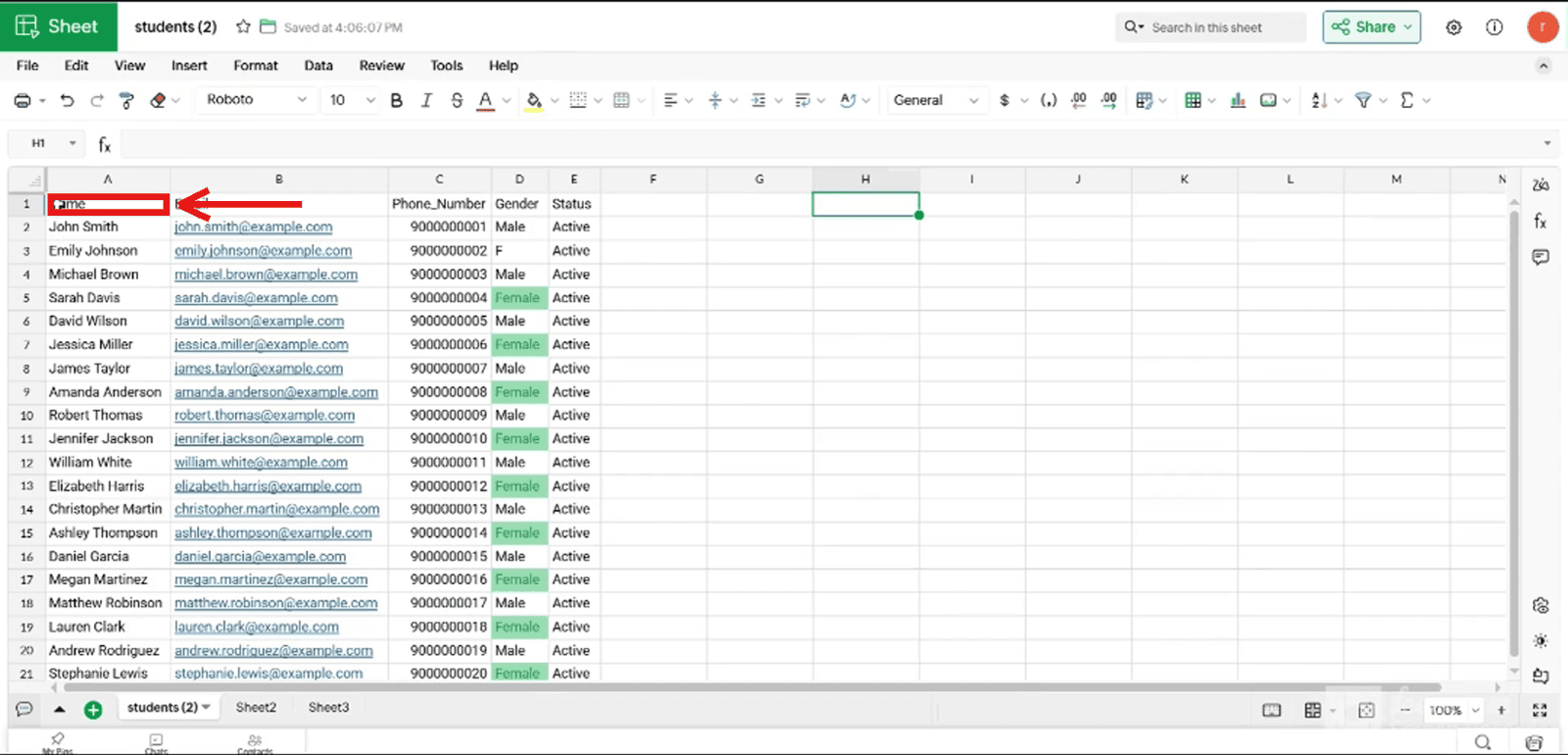
2.2 Drag to the last cell (E21) to select the whole data range (2.2_Drag_to_select_the_data_range).
3. Create the pivot table
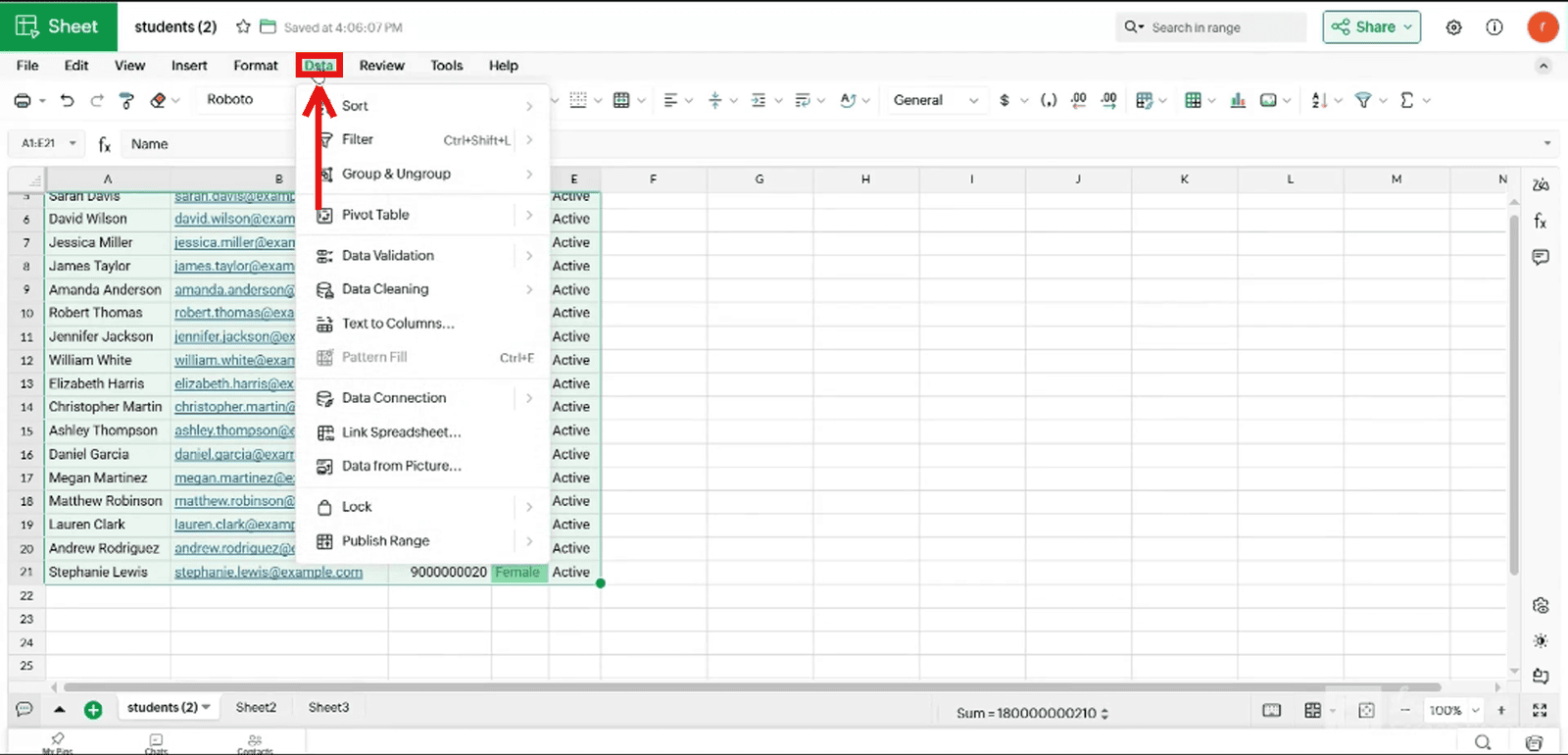
3.1 Click Data in the top menu (3.1_Click_Data_menu).
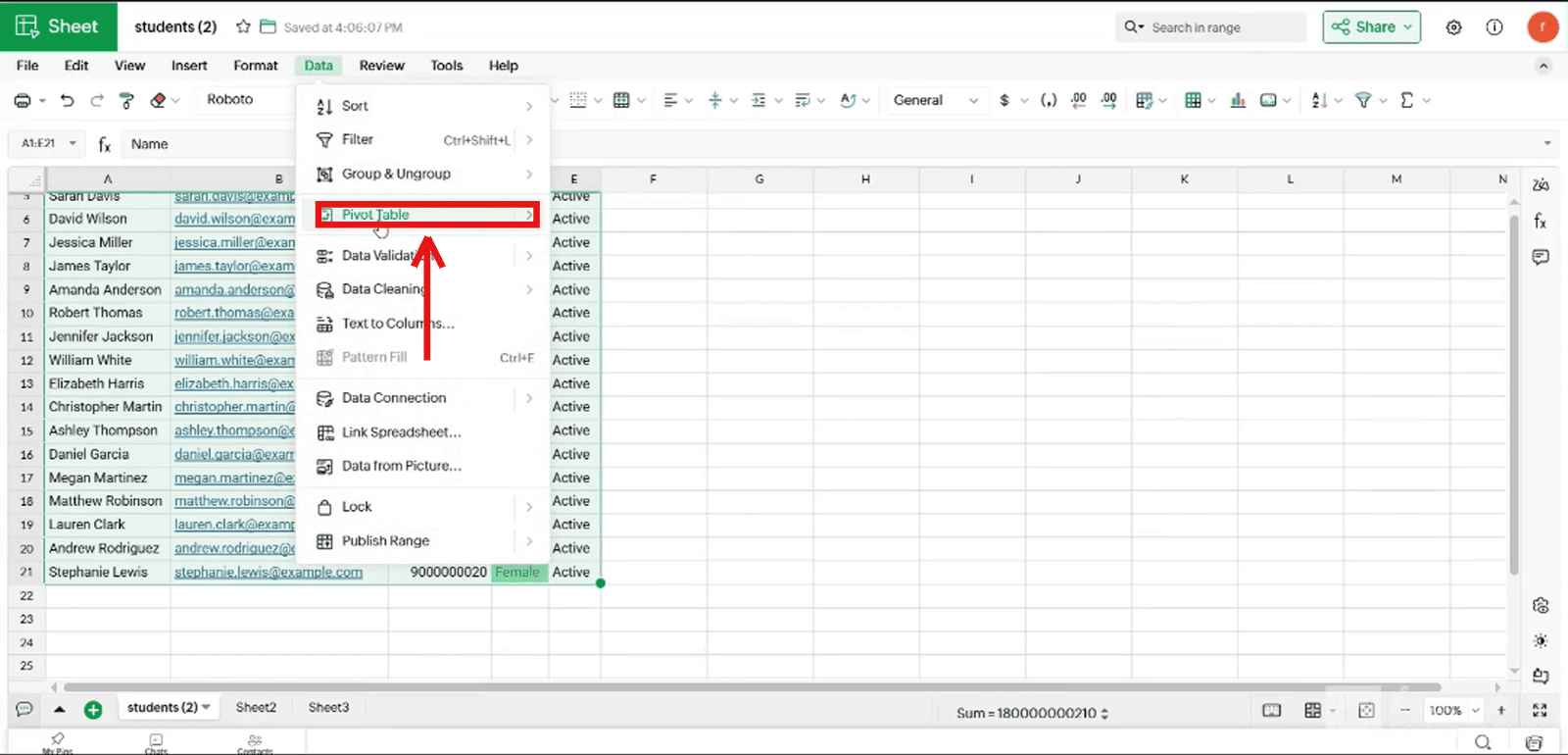
3.2 Hover over Pivot Table (3.2_Hover_Pivot_Table).
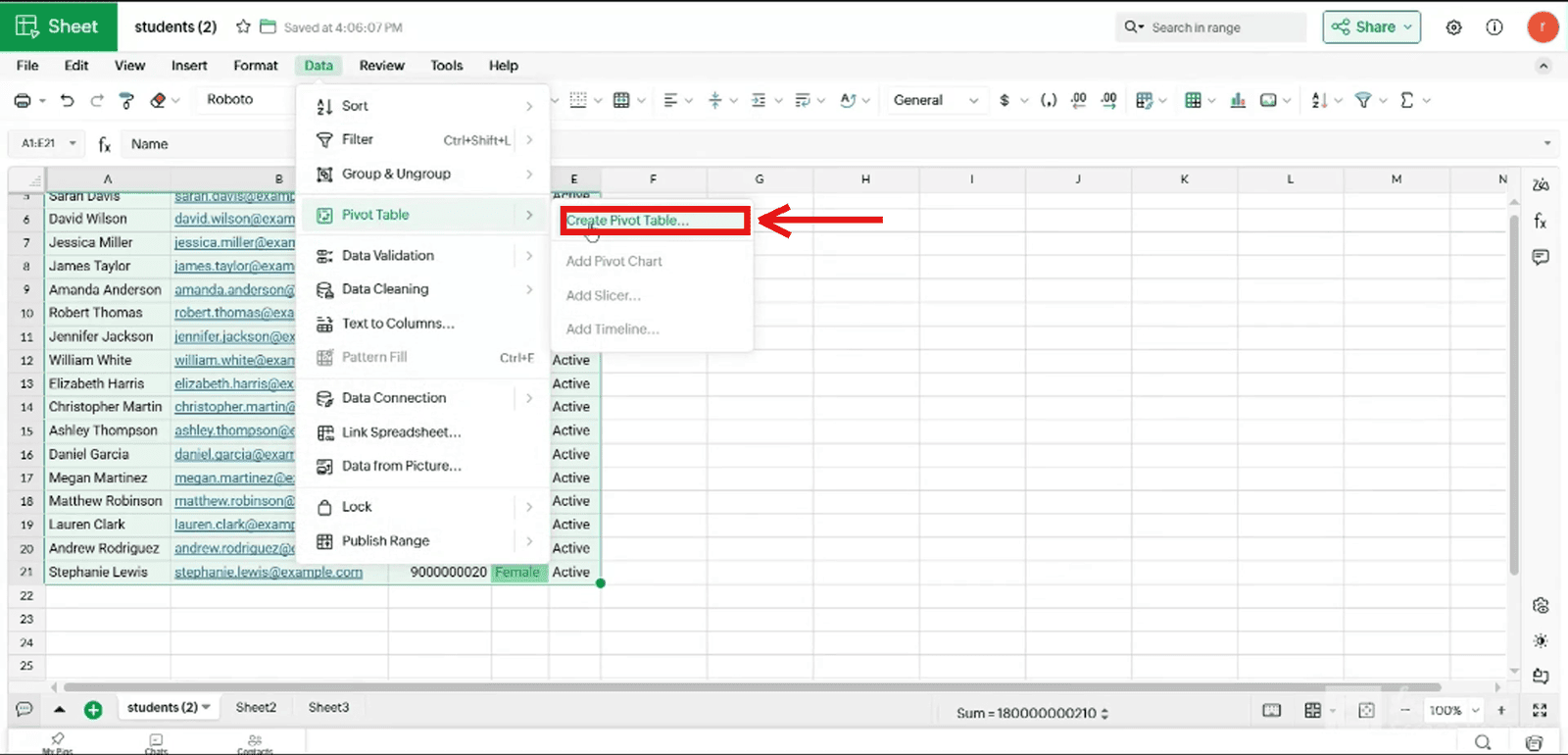
3.3 Click Create Pivot Table… (3.3_Click_Create_Pivot_Table).
4. Fill in the Create Pivot Table box
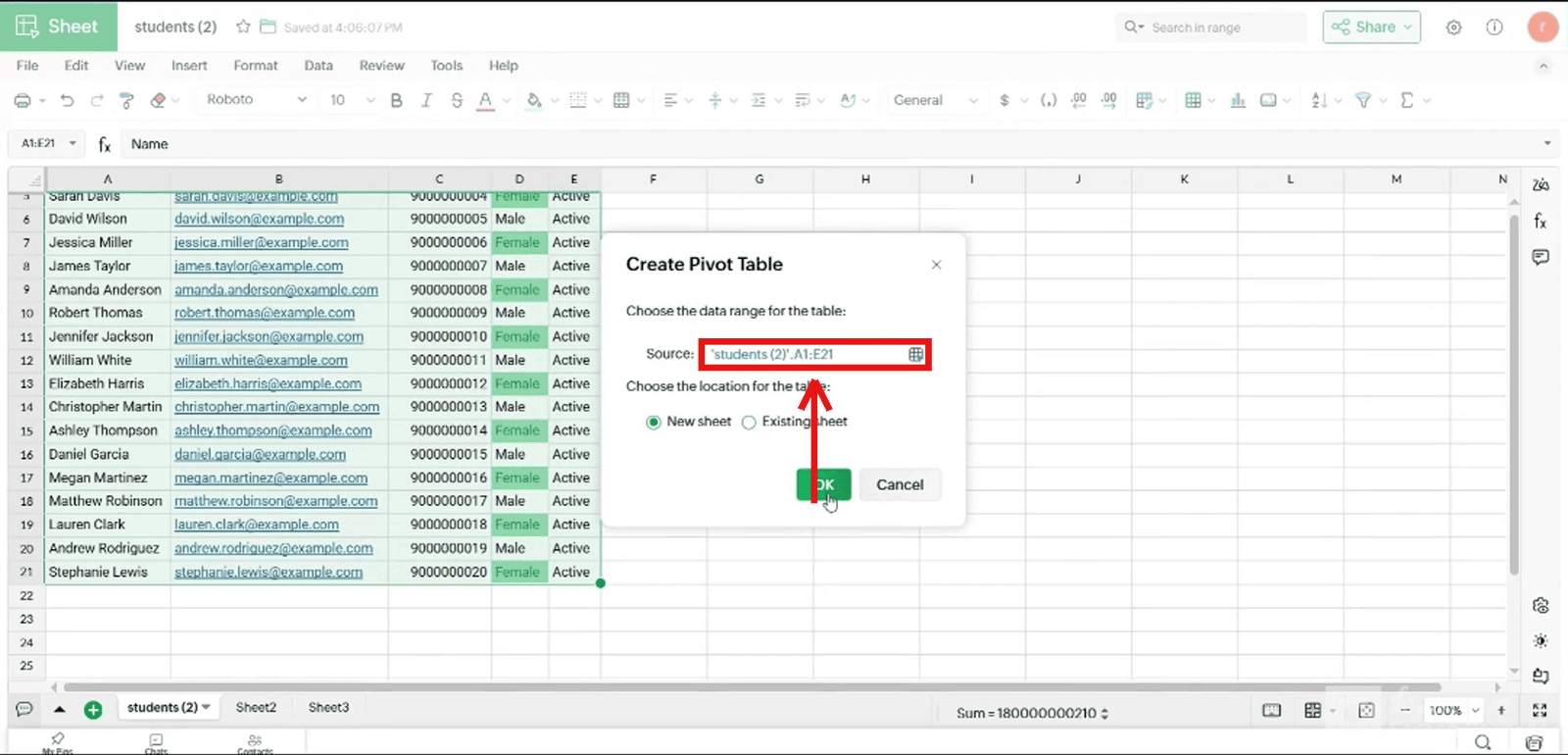
- 4.1 Check that the source range is correct (
4.1_Check_source_range).
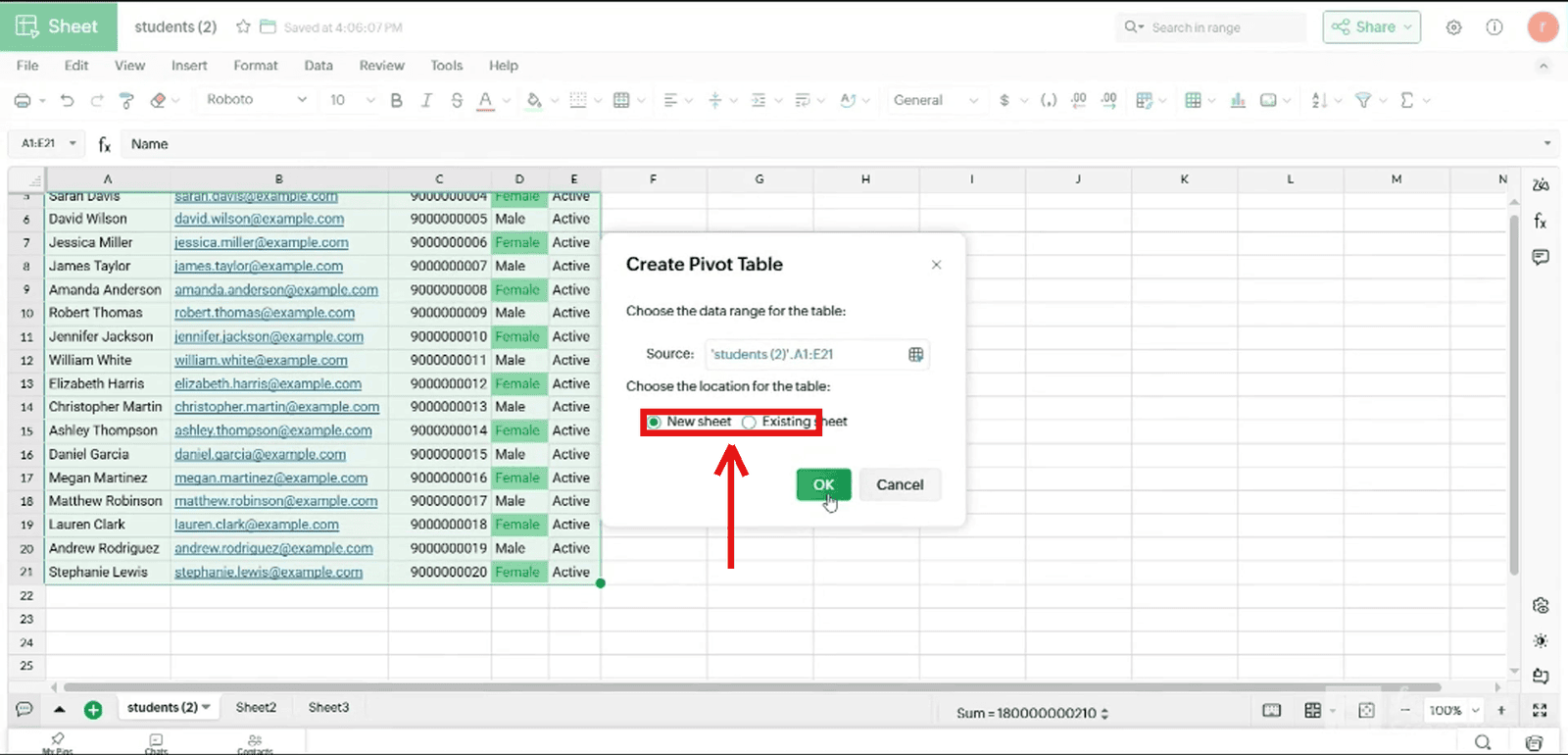
4.2 Choose the location, New sheet (4.2_Choose_location_New_sheet).
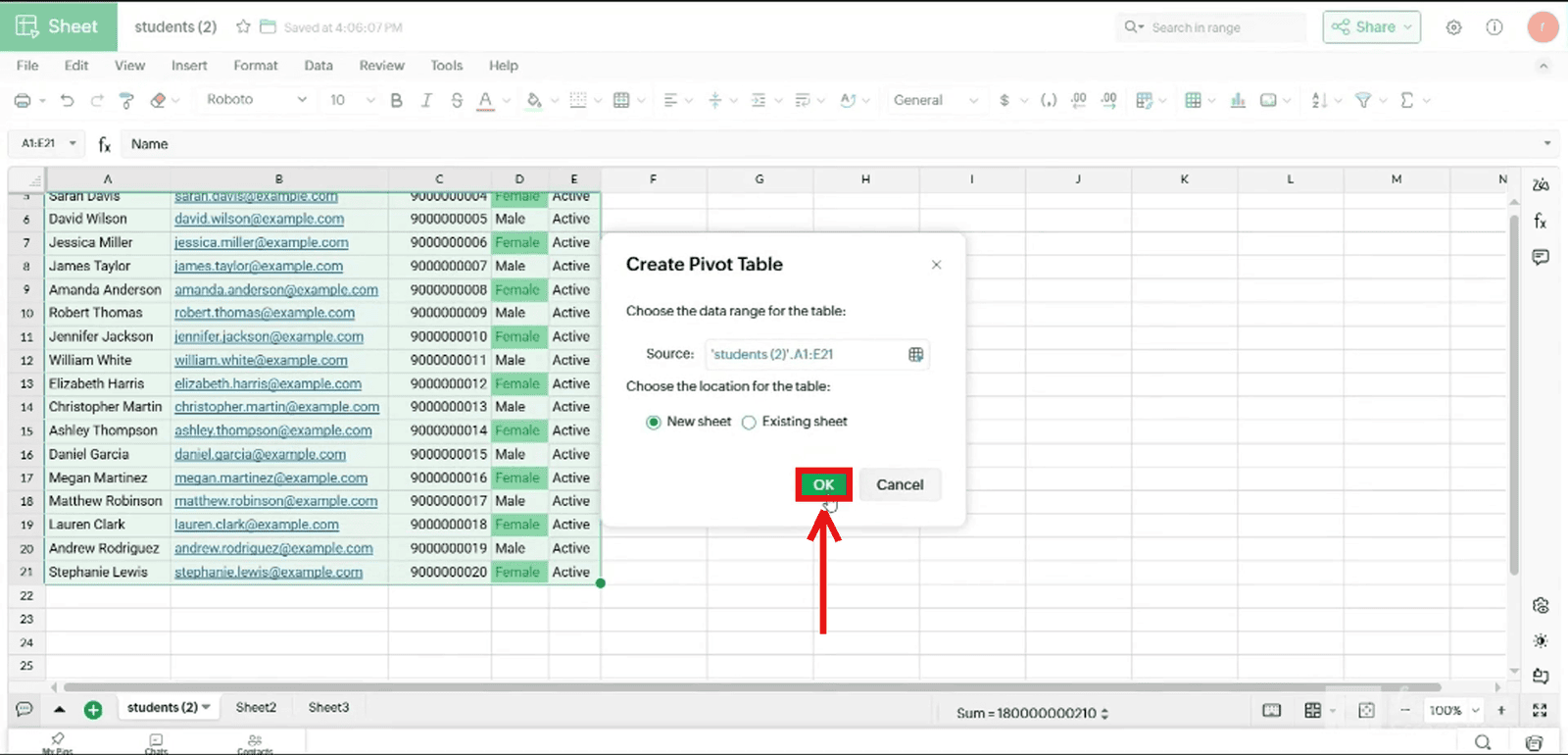
4.3 Click OK (4.3_Click_OK).
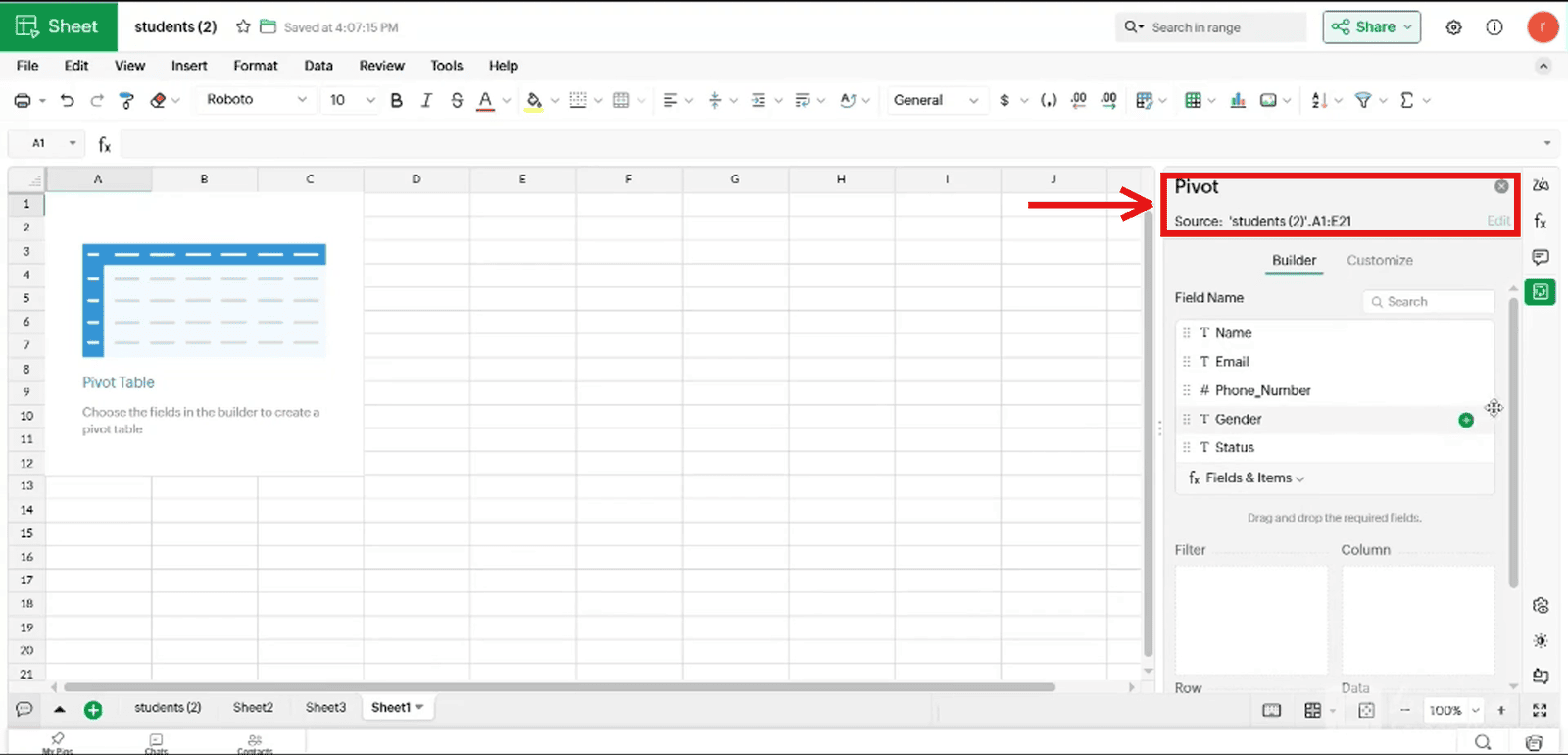
5. Add a field to the pivot table
5.1 The Pivot builder panel opens on the right (5.1_Pivot_builder_panel_opens).
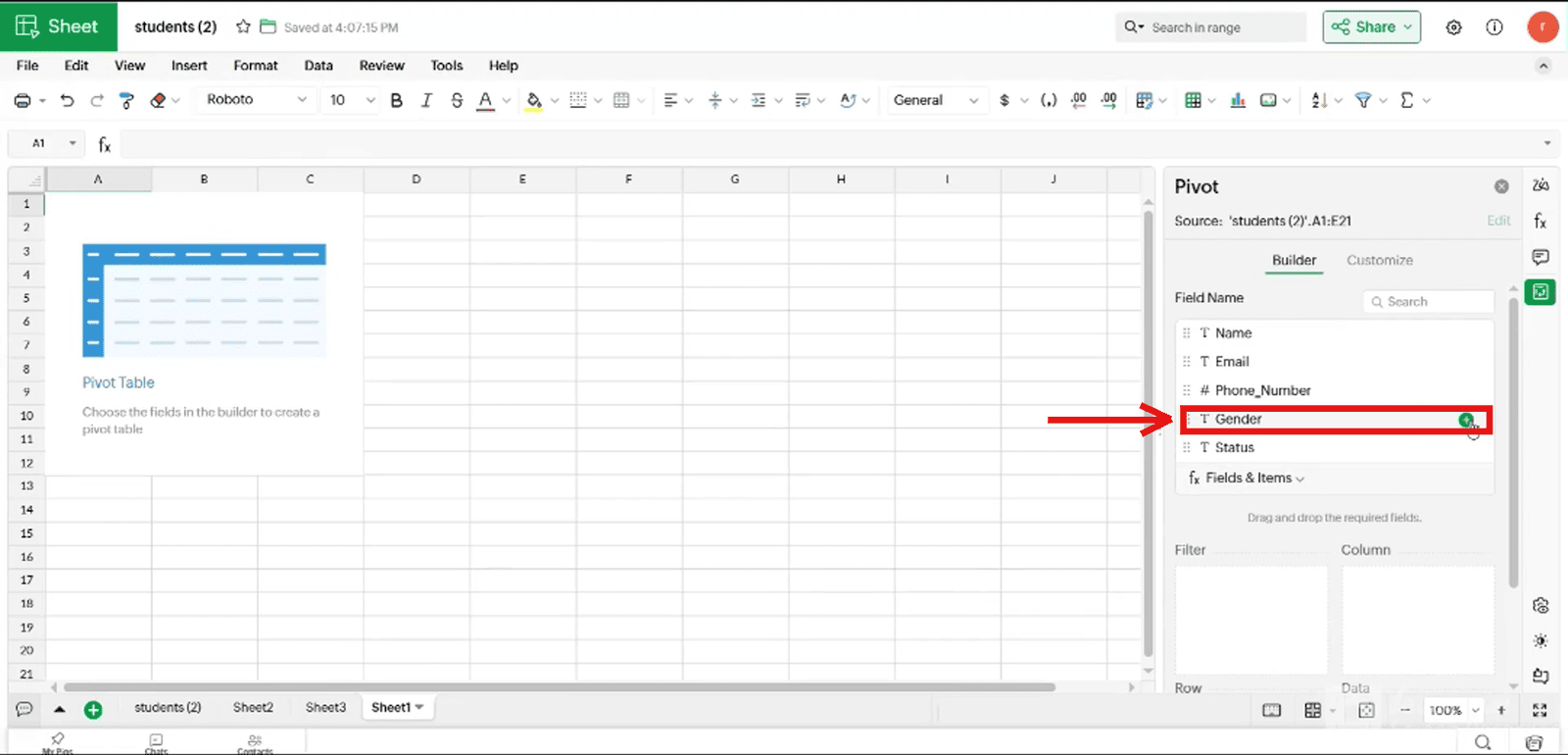
5.2 Click the + next to the field you want, here Gender (5.2_Click_plus_next_to_Gender).
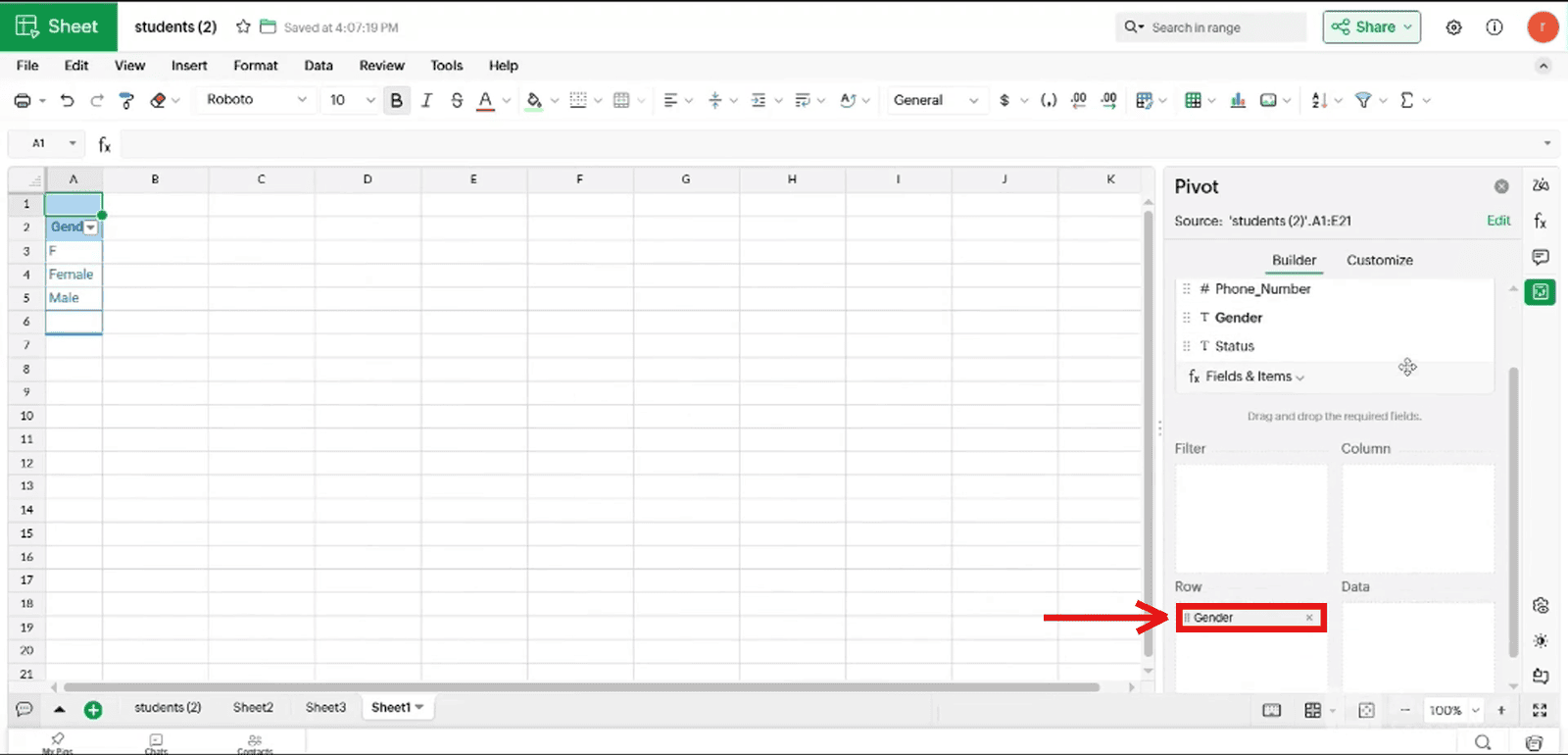
5.3 The field appears under Row and the table shows in the sheet (5.3_Gender_added_to_Row).
6. Insert the pivot chart
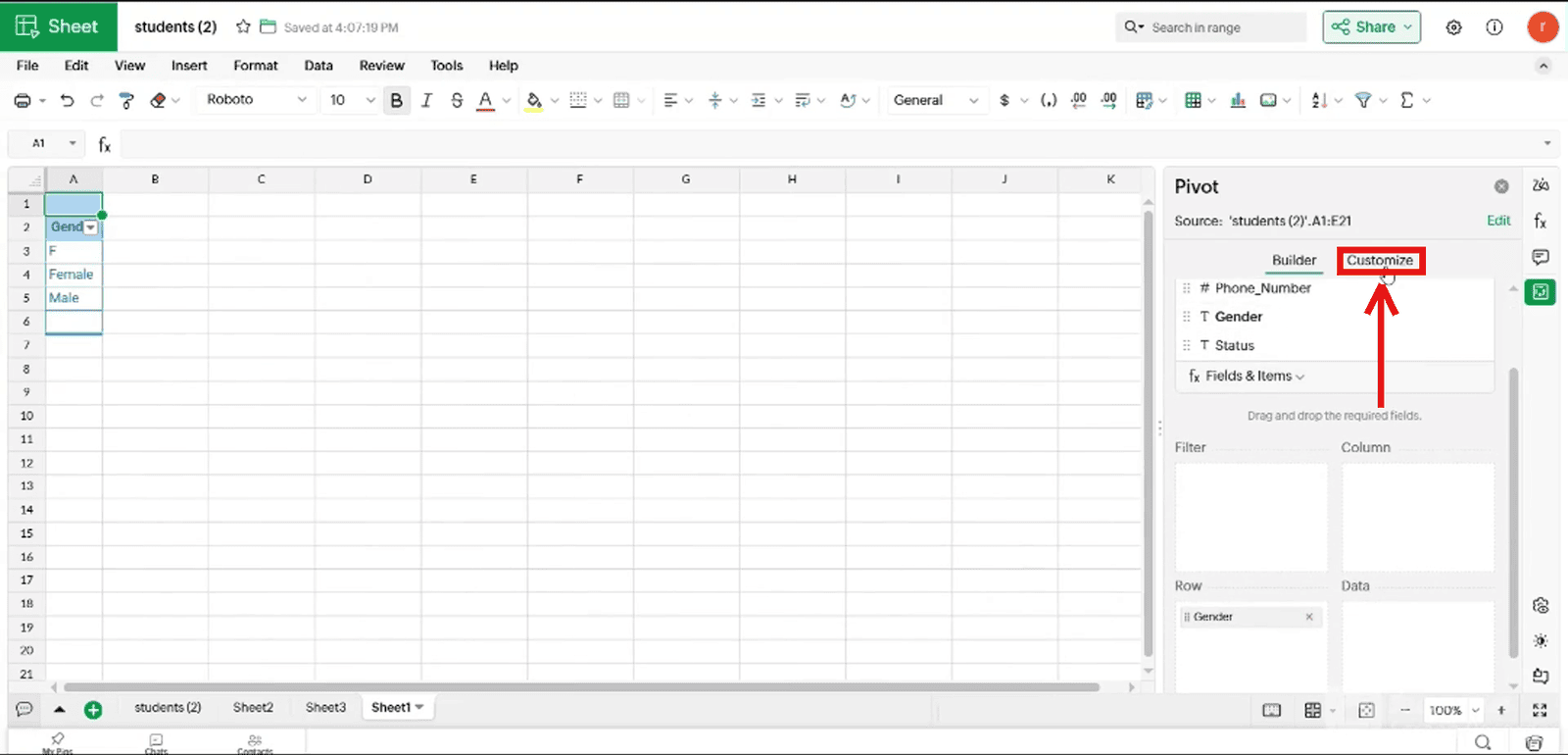
6.1 Click the Customize tab (6.1_Click_Customize_tab).
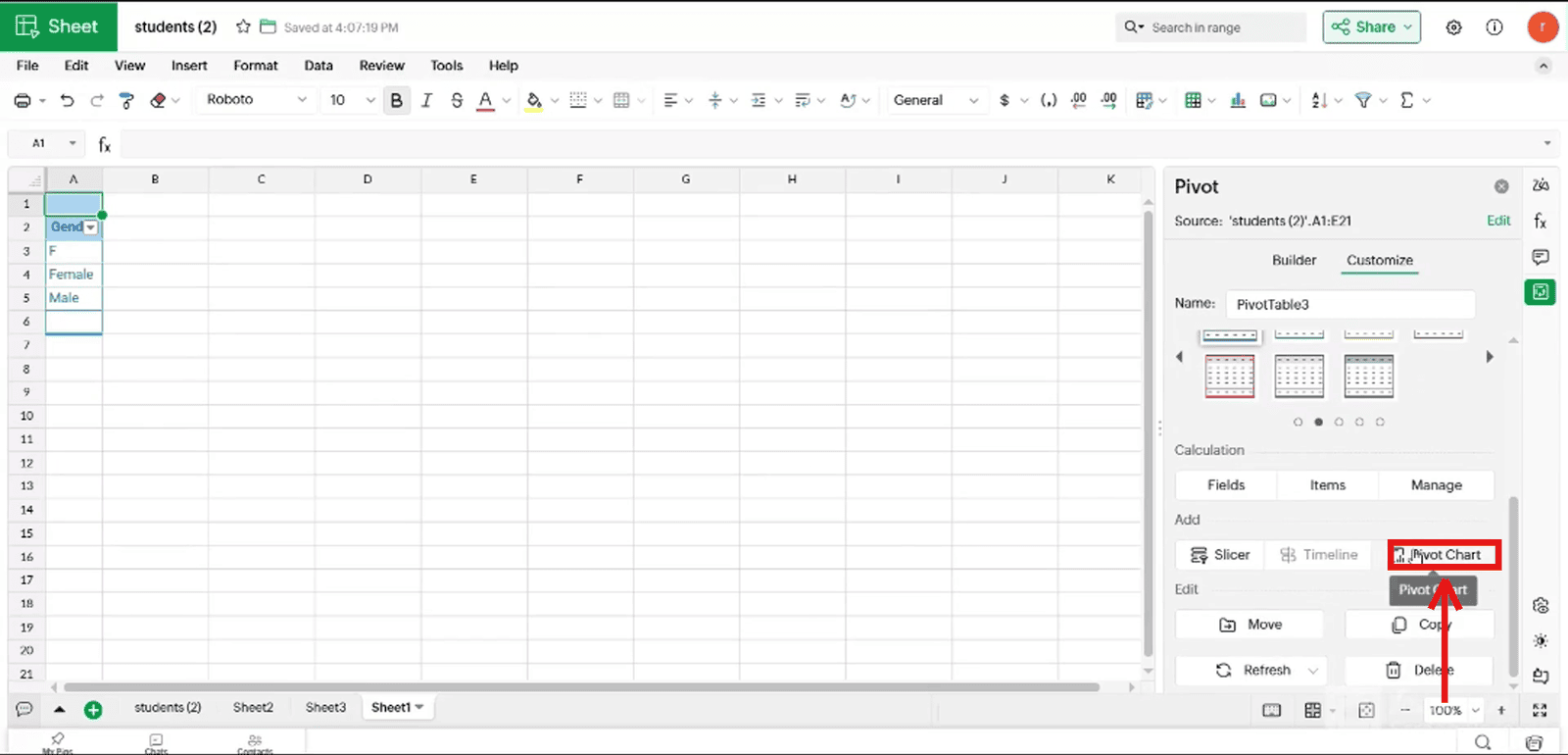
6.2 Under Add, click Pivot Chart (6.2_Click_Pivot_Chart).
6.3 An empty chart (“No Data”) appears with the Pivot Chart panel (6.3_Empty_Pivot_Chart_appears).
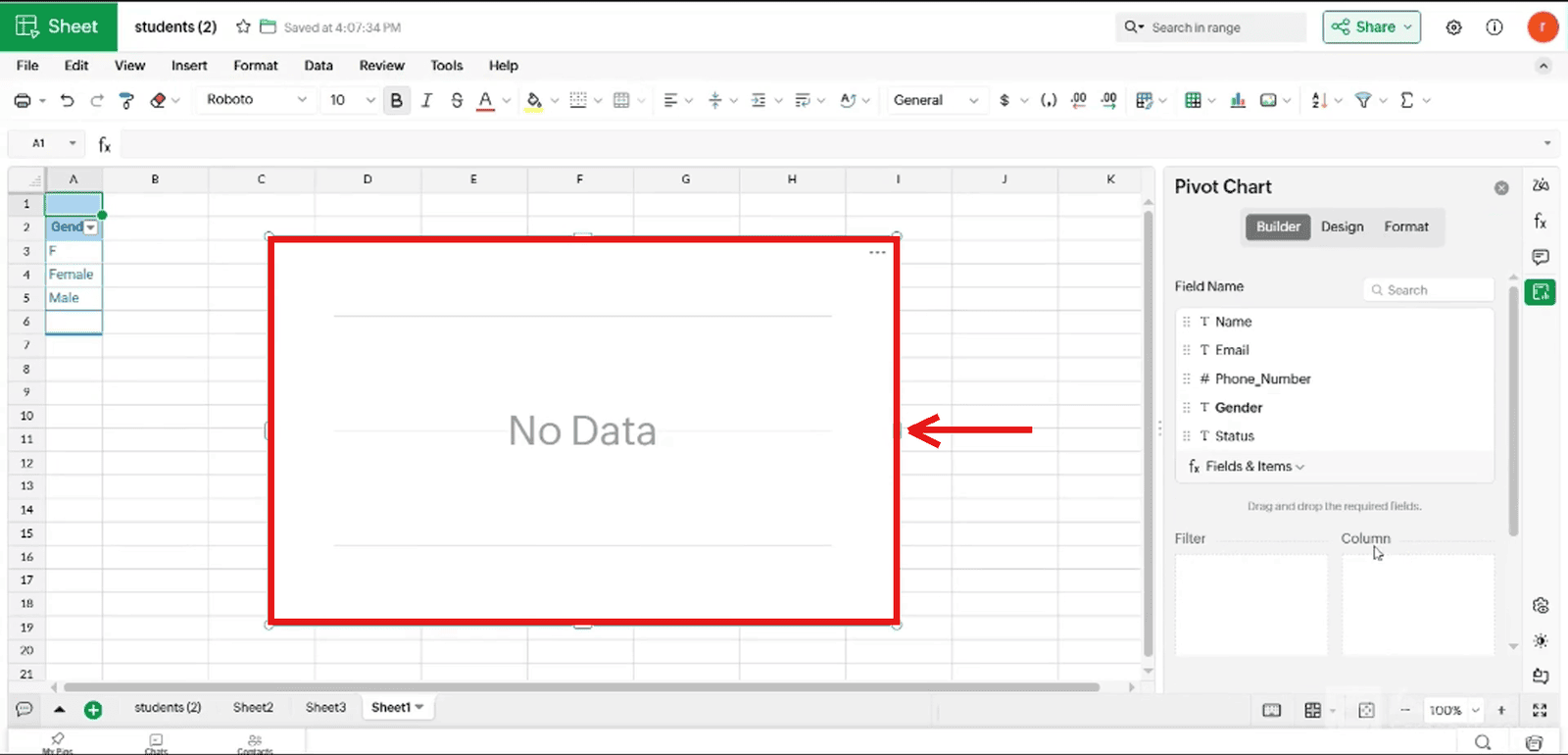
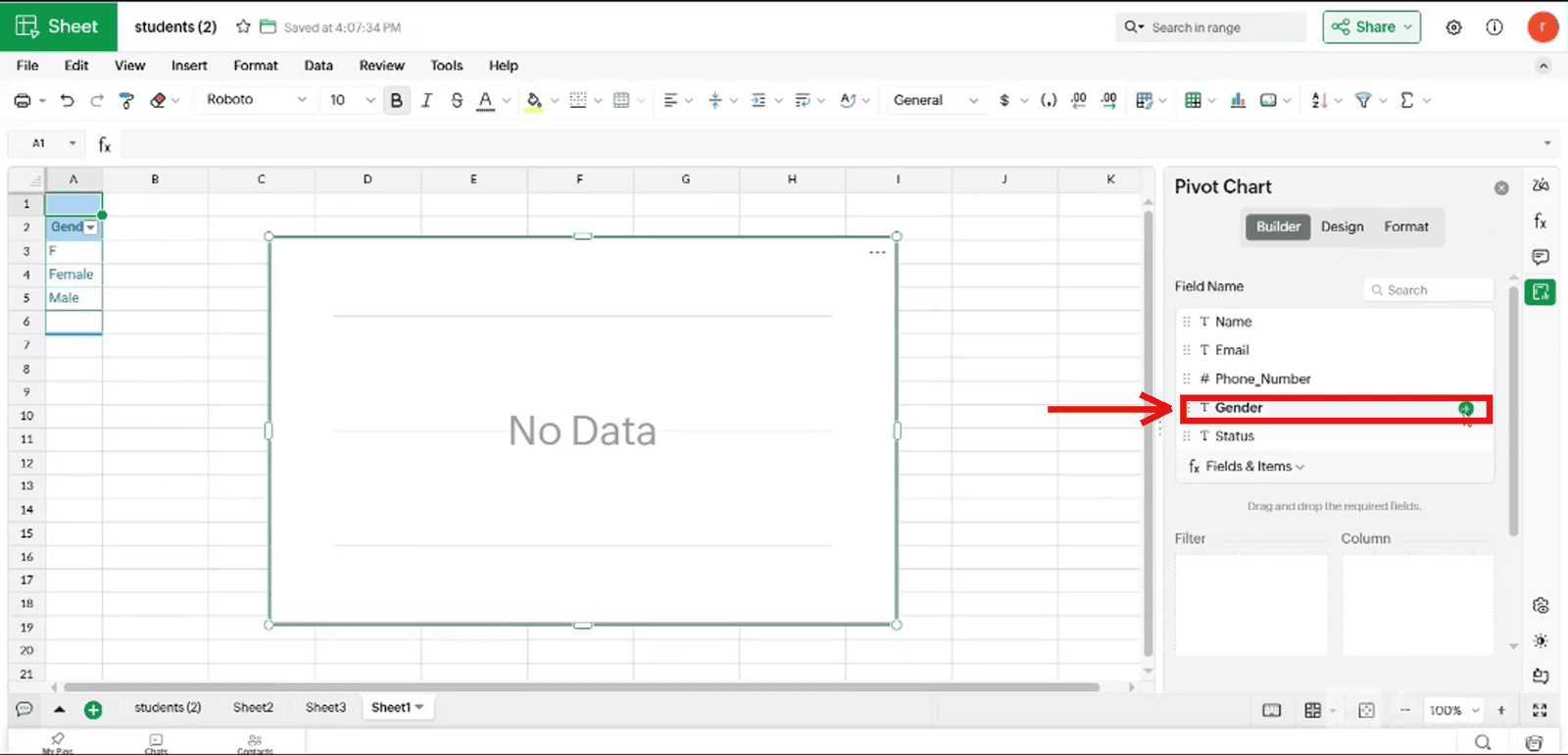
6.4 Click the + next to Gender in the chart builder (6.4_Click_plus_next_to_Gender_in_chart_builder).
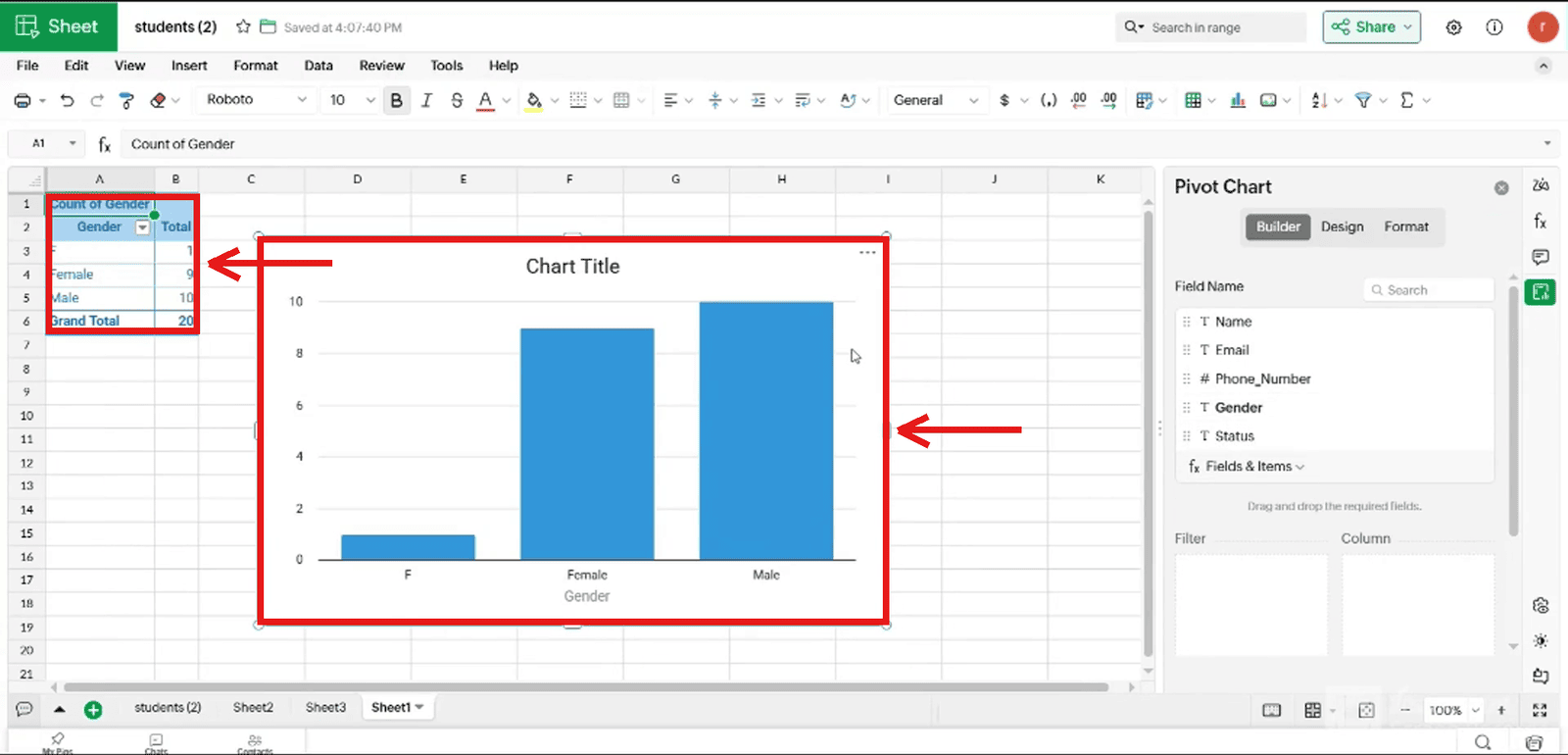
6.5 The chart fills in and the pivot table shows Count of Gender (6.5_Chart_and_pivot_table_populated).
7. Choose the chart type
7.1 Click the Design tab (7.1_Click_Design_tab).
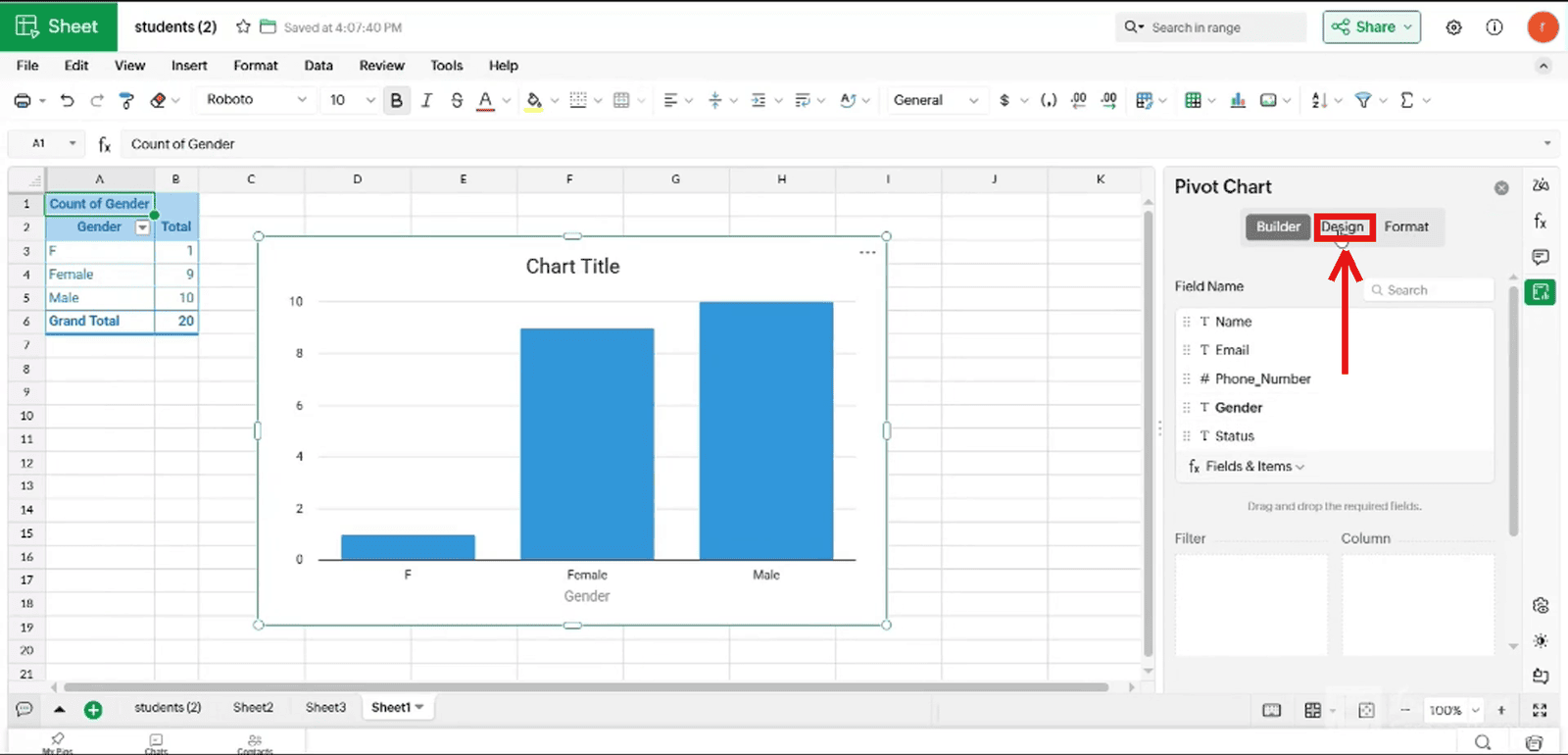
7.2 Open the Chart Type dropdown (currently Column) (7.2_Open_Chart_Type_dropdown).
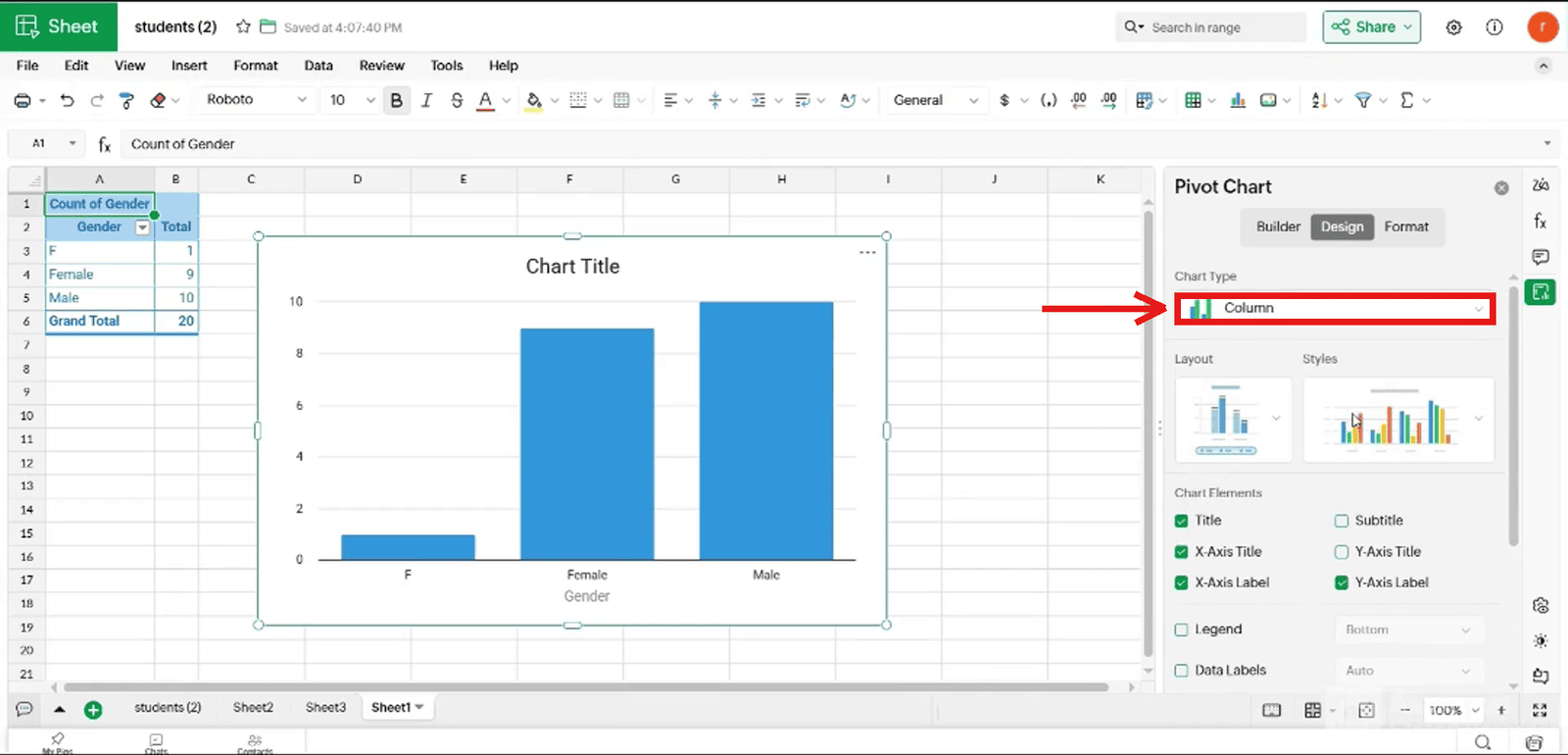
- 7.3 Scroll to Pie and select it (
7.3_Select_Pie_chart).
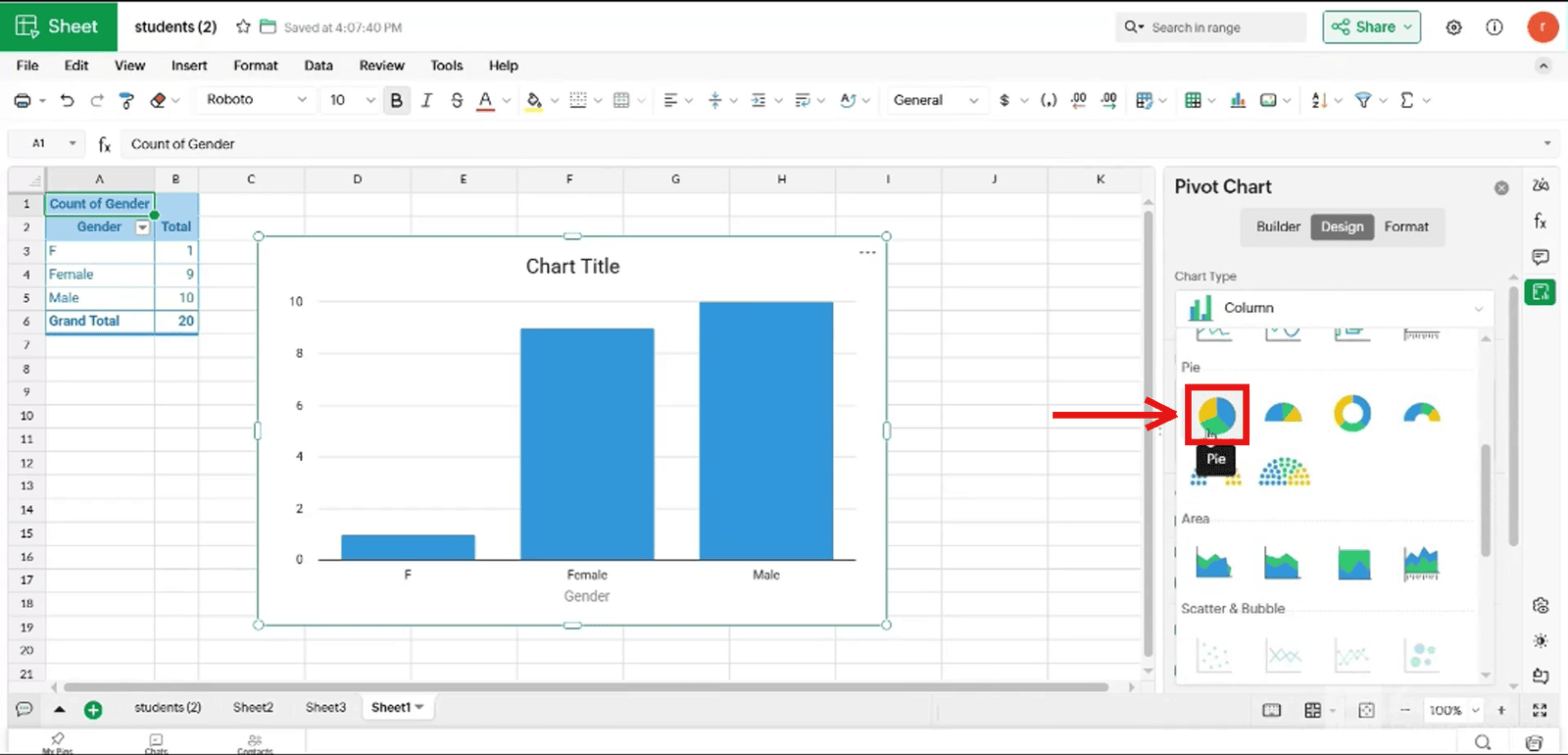
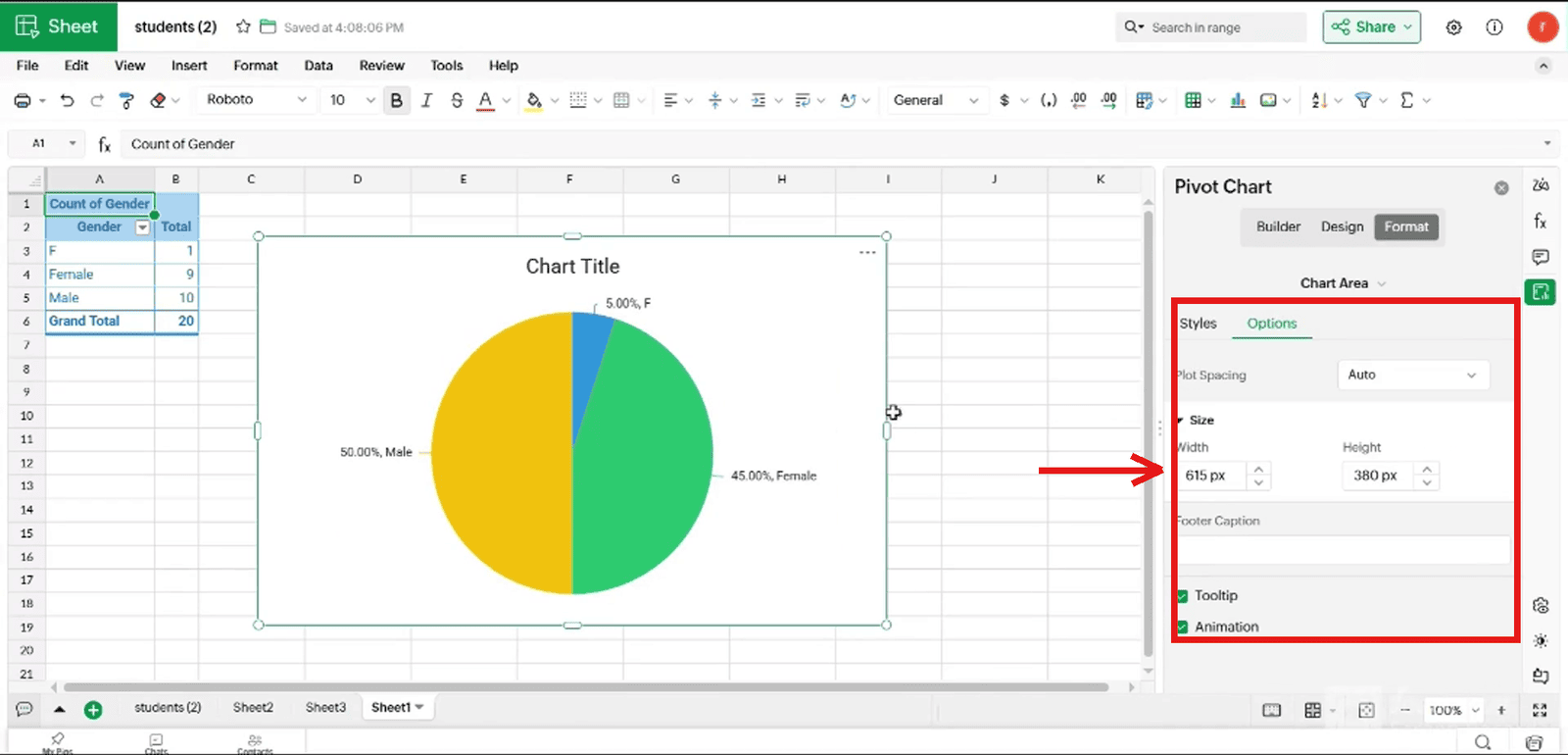
7.4 The chart changes to a pie chart with percentage labels (7.4_Pie_chart_applied).
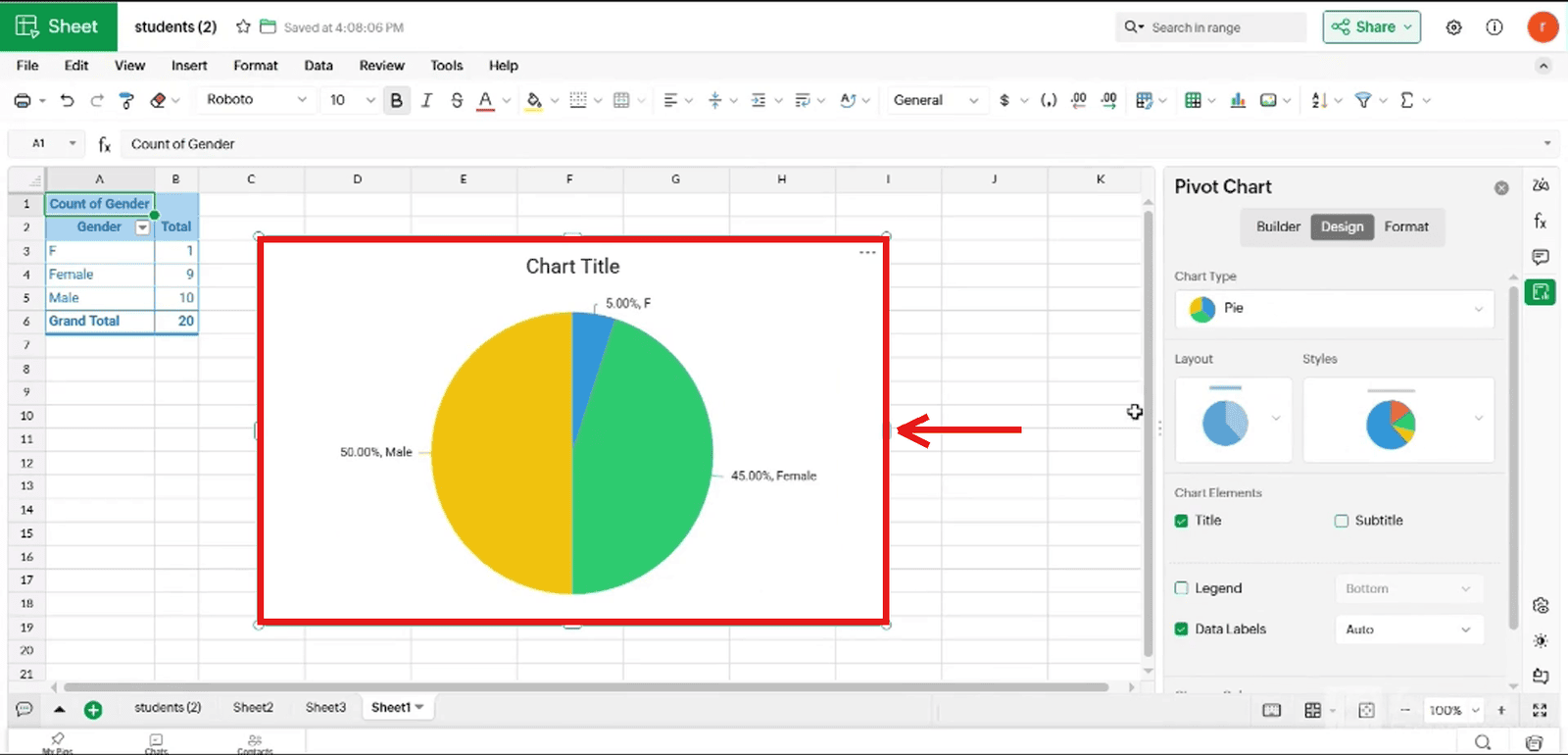
8. Format the chart (optional)
8.1 Click the Format tab (8.1_Click_Format_tab).
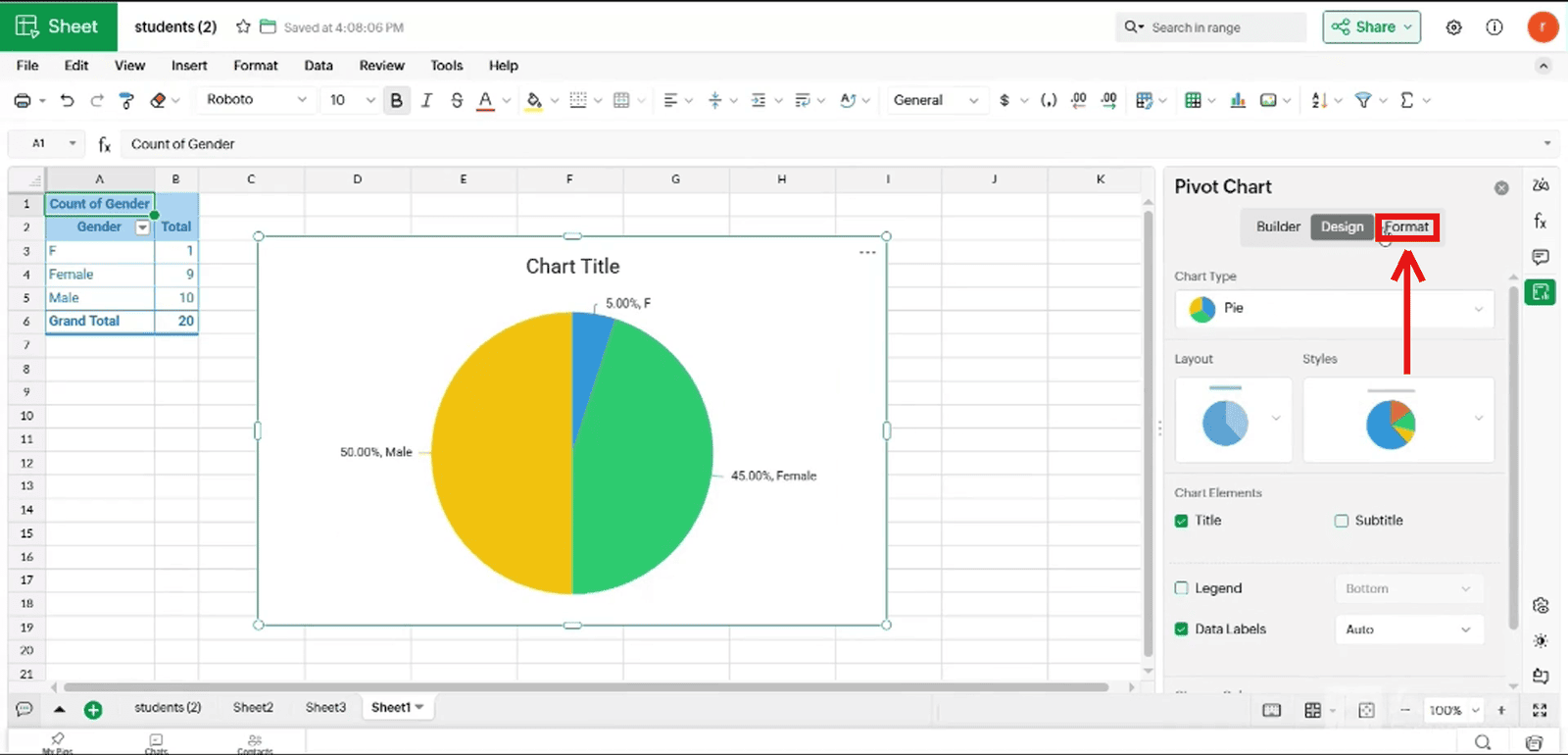
8.2 Adjust the Chart Area options: plot spacing, size (615 × 380 px), tooltip and animation (8.2_Format_options).